🏥 Technical Site Auditor
Your practical guide to the 100-check RankAnvil Site Auditor: from starting a crawl to understanding evidence, prioritising fixes and sharing a client-ready PDF report.
🌐 1. Launch a fresh site crawl
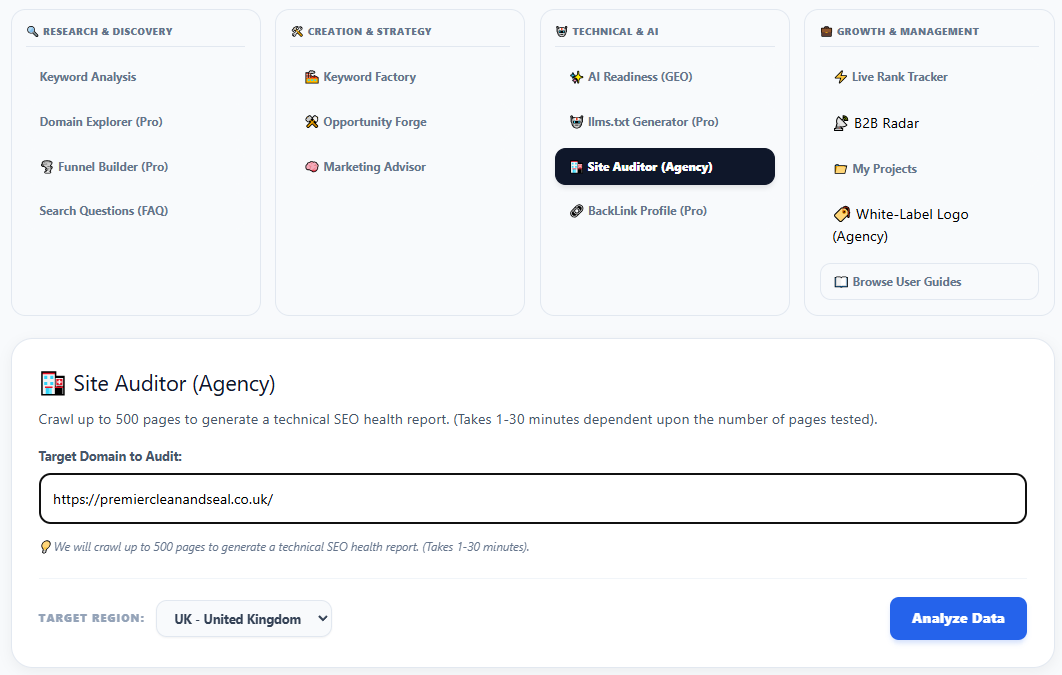
Open Site Auditor (Agency) from RankAnvil's Technical & AI tools. Enter the target website in Target Domain to Audit, choose the appropriate Target Region, and select Analyze Data.
⏳ 2. Follow the crawl progress
Once you launch the audit, RankAnvil displays a progress indicator and crawl status. The current tool advises allowing roughly 1–30 minutes, depending on the number of pages and how the site responds. Keep the workspace open until completion, as advised by the interface.
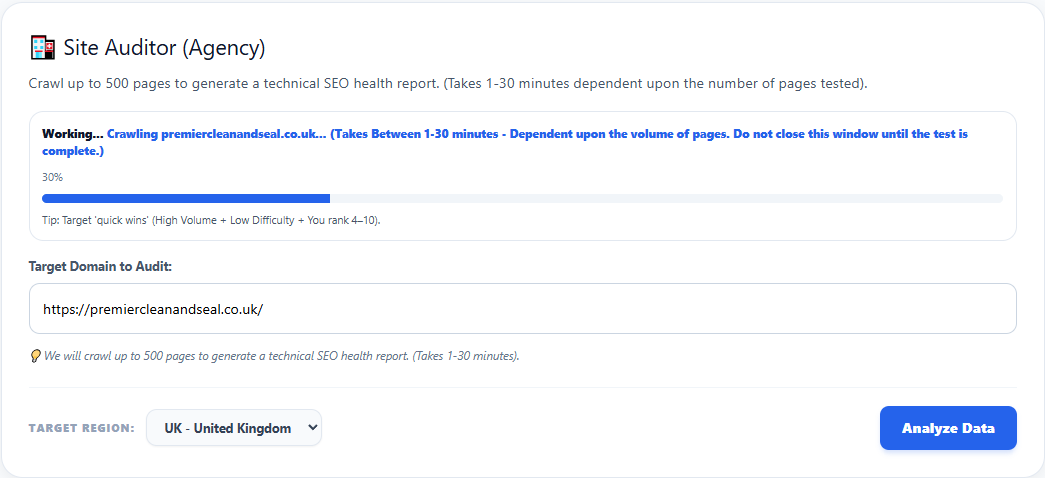
The progress bar indicates processing progress; it does not represent an SEO quality score.
📊 3. Read the report overview
When the crawl completes, the summary header displays the target domain, pages crawled and the provider's on-page score. Beneath it are four useful counters: registered checks, checks with findings, total findings and high-priority checks.
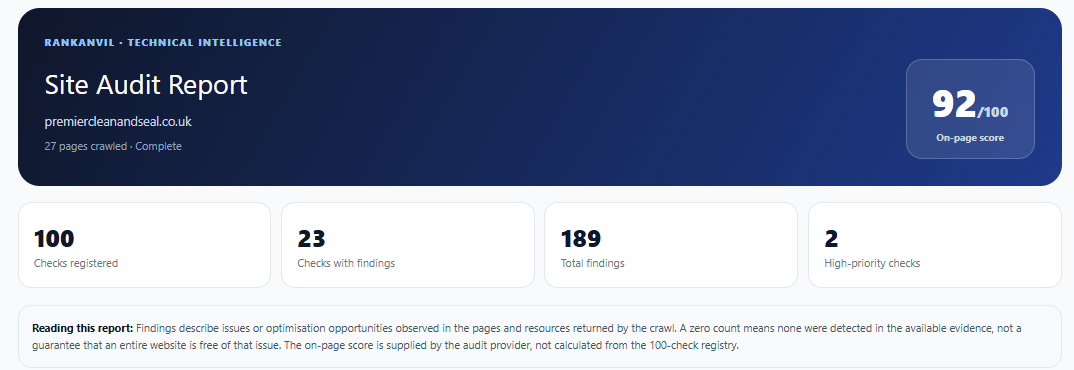
A score supplied by DataForSEO. It is not calculated from RankAnvil's 100-check diagnostic registry.
The number of diagnostic rules available in this report, including those with zero detected findings.
How many distinct diagnostic groups produced at least one observation.
The combined number of reported observations. This is not necessarily the number of unique affected pages.
🔍 4. Understand findings, evidence and recommendations
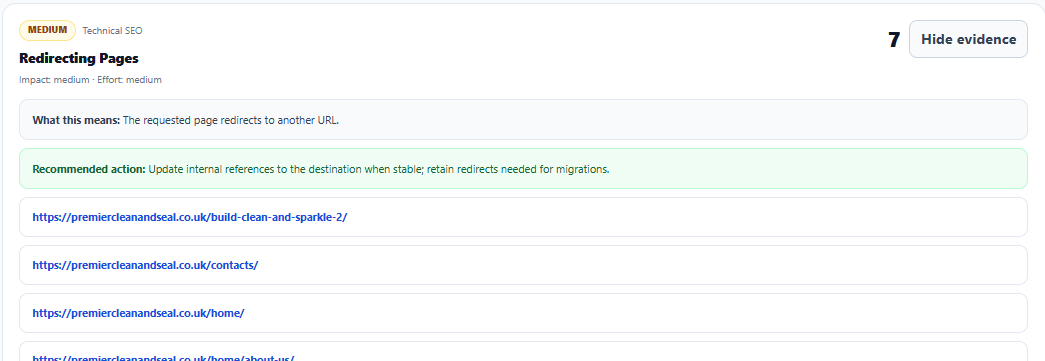
Each diagnostic card identifies its severity and category, and shows how many observations it contains. Select Show evidence to expand a card, or Hide evidence to collapse it. Expanded cards explain What this means, give a Recommended action, and list the relevant URLs or asset-level evidence.
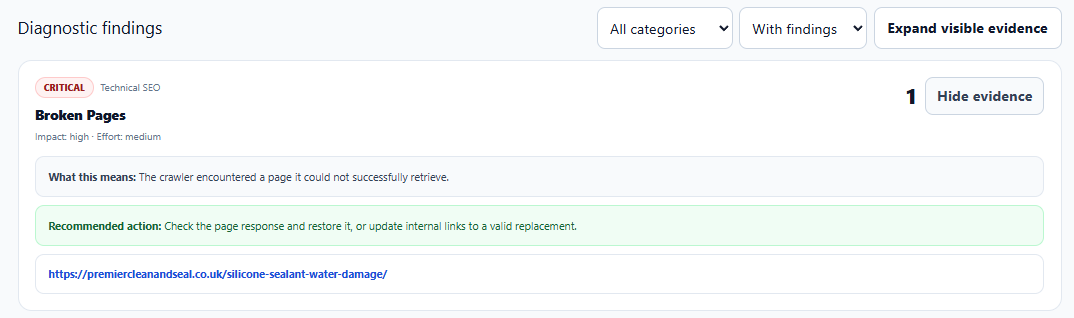
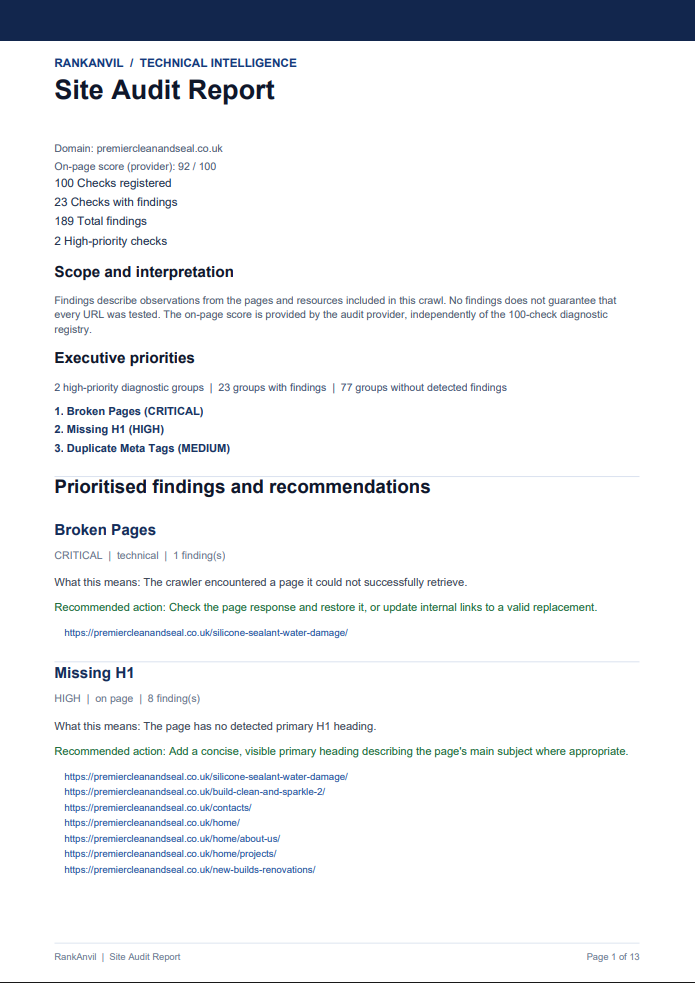
For example, a Broken Pages finding highlights a page the crawler could not successfully retrieve. Check the response and either restore the page or update links pointing to a suitable replacement.
🧭 5. Filter and prioritise your diagnostics
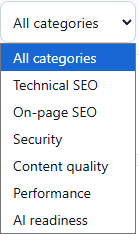
Use the category filter to focus on a particular area, including Technical SEO, On-page SEO, Security, Content quality, Performance or AI readiness. The adjacent findings filter lets you focus on checks with findings; Expand visible evidence opens the evidence for the currently displayed items.
A sensible order of attention
- Critical: Check access, crawling failures and other severe problems first.
- High: Review significant issues, especially on important pages.
- Medium: Consider structural, content and performance improvements in context.
- Low: Review optional and heuristic-based suggestions when useful.
The impact and effort labels shown in a diagnostic help with planning, but they are general guidance rather than a site-specific cost estimate.
📄 6. Export a client-ready PDF
Use the workspace's PDF report export control after the audit is complete. The downloaded A4 report brings together the domain summary, executive priorities, findings in severity order, explanatory guidance, supporting evidence and an appendix of checks without detected findings.
✅ 8. A practical approach to fixing the issues
- Start with Critical and High findings, particularly those affecting commercially important pages.
- Open the evidence, visit the affected URLs and verify whether the reported condition still exists.
- Apply the recommended action where appropriate, using your website's CMS, theme, developer or hosting controls depending on the error(s).
- Record what you changed and share the PDF between colleagues to maintain an effective history.
- Run a fresh audit when you need to validate the changes; which would be a new crawl, not an automatic refresh of the original findings.
Find the issue. Understand the evidence. Decide what matters. Take informed action.